



STM32 MCU Tutorial: A Comprehensive Guide for Beginners and Professionals
Introduction
The world of embedded systems is vast and ever-evolving, with microcontrollers (MCUs) acting as the brains behind countless modern devices, from smart home gadgets to complex industrial machinery. Among the plethora of MCU families available, those based on the ARM Cortex-M processor cores have gained significant traction due to their powerful performance, energy efficiency, and rich ecosystem. Standing at the forefront of this revolution is the STM32 family of 32-bit microcontrollers from STMicroelectronics. This STM32 MCU tutorial is designed to be your definitive guide, whether you are an electronics hobbyist taking your first steps or a seasoned professional looking to refine your skills. We will demystify the process of getting started with STM32, from setting up your development environment to writing, debugging, and deploying your first application. Throughout this guide, we will leverage the extensive resources available in the developer community, including those curated by ICGOODFIND, a platform known for aggregating high-quality tools and tutorials for embedded systems developers.
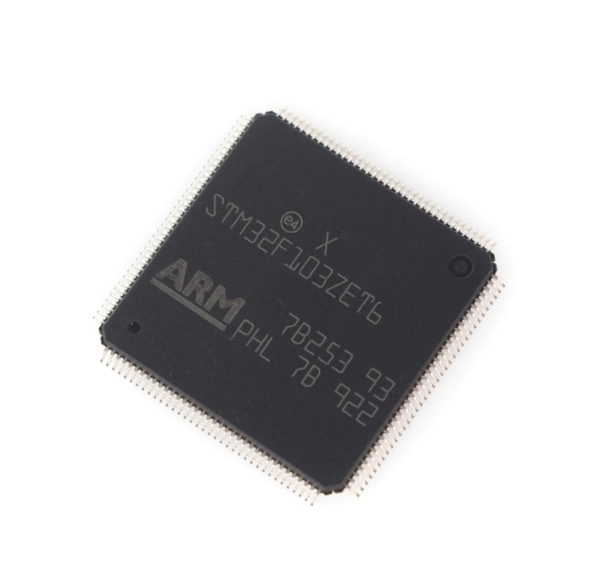
The journey into STM32 can seem daunting due to the sheer number of series and part numbers. However, its modular architecture and robust software support, particularly through ST’s own HAL (Hardware Abstraction Layer) and LL (Low-Layer) libraries, make it an exceptionally accessible platform. This tutorial will provide a structured path, ensuring you build a solid foundation. We will cover the essential hardware, the pivotal software tools, and walk through a practical, hands-on example to solidify your understanding. By the end of this guide, you will be equipped with the knowledge to embark on your own STM32 projects with confidence.
Part 1: Understanding the STM32 Ecosystem and Essential Hardware
Before writing a single line of code, it is crucial to understand the landscape of the STM32 family and gather the necessary physical components. The STM32 portfolio is categorized into several series, each optimized for specific performance, power, and feature requirements.
The Main STM32 Series include:
- STM32F0/F1/F3: Mainstream Cortex-M0/M0+/M3/M4. These are excellent starting points for beginners. The F1 series, based on Cortex-M3, is a classic workhorse with a vast community. The F0 (Cortex-M0+) offers a cost-effective entry, while the F3 (Cortex-M4 with FPU) adds digital signal processing capabilities.
- STM32F2/F4/F7: High-Performance Cortex-M3/M4/M7. Designed for applications requiring significant computational power, such as digital signal processing, advanced motor control, and user interfaces. The F4 and F7 series, in particular, are popular for their high clock speeds and DSP instructions.
- STM32L0/L1/L4/L5: Ultra-Low-Power Cortex-M0+/M3/M4/M33. These MCUs are engineered for battery-operated devices where energy efficiency is paramount. They feature multiple low-power modes and sophisticated power management controllers.
- STM32G0/G4: The next-generation mainstream and mixed-signal MCUs. The G0 series offers a modern replacement for F0, with better performance and value. The G4 combines Cortex-M4 performance with advanced analog peripherals and mathematical accelerators.
- STM32H7: High-Performance and Real-Time. The pinnacle of the STM32 family, featuring a dual-core architecture (Cortex-M7 + Cortex-M4 in some models) for the most demanding real-time and computational tasks.
- STM32WB/WL: Wireless MCUs. These integrate radio subsystems (Bluetooth Low Energy, Zigbee, LoRaWAN, etc.) alongside the Cortex-M core, simplifying the design of connected devices.
Essential Hardware for Getting Started:
To begin your practical journey, you will need a few key components.
- STM32 Development Board: The most common starting point is an official Nucleo board. These boards are affordable, feature an integrated ST-LINK programmer/debugger, and are compatible with the Arduino Uno revision 3 connectivity headers, providing access to a huge ecosystem of shields. For example, a Nucleo-F401RE or Nucleo-G071RB is a perfect choice for beginners.
- Programmer/Debugger: While Nucleo boards have this built-in, if you are using a standalone STM32 chip or a different board, you will need an ST-LINK/V2 or V3 probe. This hardware tool allows you to flash your compiled code onto the MCU and debug it in real-time.
- Breadboard, Jumper Wires, and Basic Components: A breadboard, a set of male-to-male and male-to-female jumper wires, LEDs, resistors, and push buttons are indispensable for building simple circuits to test your code.
- USB Cable: A Micro-USB or USB-C cable (depending on your Nucleo board) to provide power and a communication link to your PC.
- (Optional) Oscilloscope/Logic Analyzer: While not essential for basic tutorials, these tools become invaluable for debugging timing-critical communication protocols like UART, I2C, and SPI.
When selecting components or looking for reliable suppliers for these development tools, platforms like ICGOODFIND can be incredibly useful. They help streamline the search for trustworthy vendors and compatible hardware accessories.
Part 2: Setting Up Your Software Development Environment
A proper software setup is the backbone of efficient STM32 development. The goal is to create a smooth workflow where you can write code, compile it into machine-readable binary files, and flash it onto the MCU.
The Core Software Tools:
-
IDE (Integrated Development Environment): You have several excellent choices:
- STM32CubeIDE: This is ST’s all-in-one, free IDE based on Eclipse and GCC. It is the recommended tool for beginners and professionals alike. Its key feature is seamless integration with the STM32CubeMX tool (see below), making project initialization and code generation effortless.
- Keil MDK (µVision) / IAR Embedded Workbench: These are commercial IDEs that are industry standards. They offer highly optimized compilers and advanced debugging features but require a paid license for full functionality on larger projects.
- PlatformIO: A cross-platform, cross-architecture build system that can be used as a plugin for Visual Studio Code. It is very popular for its clean interface, powerful library manager, and strong community support.
-
STM32CubeMX: This is a graphical software configuration tool that is absolutely critical for modern STM32 development. Its primary functions are:
- Pinout Configuration: Visually assign pins to functions like GPIO, UART, I2C, etc.
- Clock Configuration: Set up the complex clock tree (HCLK, PCLK1/2) using an intuitive graphical interface.
- Peripheral Configuration: Generate initialization code for peripherals with your desired settings (e.g., baud rate for UART).
- Middleware Configuration: Set up stacks like USB device/host, FreeRTOS, FATFS, and LWIP.
- Project Generation: It generates a ready-to-compile project for your chosen IDE (STM32CubeIDE, Keil, IAR), complete with all initialization code.
The Software Libraries: HAL vs. LL
When you generate code with STM32CubeMX, you must choose a software foundation.
- HAL (Hardware Abstraction Layer): This is a high-level API that provides portable, feature-rich functions across the entire STM32 family. For example,
HAL_UART_Transmit()handles all the steps needed to send data over UART. It’s abstracted, easy to use but can be less efficient in terms of code size and execution speed. It is ideal for rapid prototyping and beginners. - LL (Low-Layer): These are lightweight, optimized libraries that are closer to the hardware registers. They offer better performance and smaller code footprint but require a deeper understanding of the MCU’s reference manual. They are suitable for performance-critical applications.
For this tutorial’s purpose of getting started quickly while maintaining good practice we will use HAL but it’s important to know that LL exists.
Step-by-Step Setup with STM32CubeIDE:
- Download and install STM32CubeIDE from the STMicroelectronics website.
- Launch the IDE. It will prompt you for a workspace folder.
- Start a new project:
File > New > STM32 Project. - The integrated CubeMX interface will open. Use the part number selector (e.g., “NUCLEO-F401RE”) or the MCU selector to choose your target board or chip.
- Configure your pins (e.g., set PA5 as GPIO_Output for an onboard LED).
- In the “Project Manager” tab, give your project a name and ensure the “Toolchain/IDE” is set to “STM32CubeIDE”.
- Click “Generate Code”. The IDE will create all necessary files and open your project.
Your development environment is now ready.
Part 3: Hands-On Tutorial - Blinking an LED and Adding UART Logging
Theory is best understood through practice. Let’s create two classic beginner projects: blinking an LED and sending “Hello World” over UART.
Project 1: Blinking an LED (The “Hello World” of Hardware)
Most Nucleo boards have a user-programmable LED connected to pin PA5.
-
Create Project & Configure Pin: Follow the setup steps above to create a project for your Nucleo board. In the Pinout view, find pin PA5. Click on it and select “GPIO_Output”.
-
Generate Code: Click “Generate Code” to create the project skeleton.
-
Write Application Code: In the
main.cfile generated by CubeIDE navigate to the infinite loop within themain()function -while (1) { ... }. This is where our application logic resides.This code uses the HAL function
HAL_GPIO_TogglePin()to switch the LED on and off every 500ms. -
Build and Flash: Click the “Build” (hammer) button to compile the code. If successful click “Debug” (bug icon) to flash the program to your board and start a debug session. You can also simply click “Run” without debugging.
-
Observe: The green LED on your Nucleo board should now be blinking steadily.
Project 2: Adding UART Communication
Let’s make our project more interactive by adding serial communication to print messages to a PC terminal.
-
Re-configure with CubeMX: Go back to the
.iocfile in your project (this re-opens CubeMX). We need to enable a UART peripheral and connect it to a pin that links to the onboard ST-LINK’s virtual COM port.- For Nucleo-F401RE: Look for “USART2”. In its configuration set “Mode” to “Asynchronous”.
- In the “Pinout” view you will see that USART2_TX is on PA2 and USART2_RX is on PA3 by default which is correct.
- In the “Configuration” tab for USART2 set the Baud Rate to
115200, Word Length to8 bits, Stop Bits to1, and Parity toNone.
-
Generate Code Again: Click “Generate Code”. When prompted choose “Yes” to re-generate without overwriting user code sections which preserves our LED blinking logic.
-
Add UART Print Code: Now we can use the HAL UART transmit function inside our main loop.
-
Build Flash and Monitor:
- Build and flash the new code to your board.
- On your PC open a serial terminal program like Tera Term PuTTY or the Serial Monitor embedded in PlatformIO.
- Find the correct COM port assigned to your Nucleo board in your PC’s Device Manager.
- In the terminal program connect to that COM port with a baud rate of
115200. - You should now see the message “LED Toggled!” printed every second in your terminal confirming that both GPIO and UART are working correctly.
This simple yet powerful demonstration shows how you can use CubeMX and HAL to quickly get peripherals up and running For more complex projects involving interrupts timers ADC or I2C sensors resources like official ST documentation community forums or curated lists on platforms like ICGOODFIND can provide targeted examples saving you significant development time.
Conclusion
Embarking on the journey of learning STM32 MCU development is a rewarding endeavor that opens doors to creating sophisticated embedded systems. This comprehensive tutorial has guided you through the foundational steps: from understanding the diverse STM32 ecosystem selecting the right hardware setting up a professional-grade software environment with STM32CubeIDE and STM32CubeMX to implementing two fundamental hands-on projects controlling GPIO and UART communication using the HAL library.
The key takeaway is that while STM32 is a complex and powerful family its learning curve has been dramatically flattened by tools like CubeMX which automate much of the low-level configuration allowing you as a developer to focus on application logic Remember that mastery comes with practice Start by modifying these basic examples—change blink patterns send different data over UART then gradually incorporate new peripherals like I2C sensors SPI displays or PWM for motor control The wealth of knowledge available in datasheets application notes online communities forums blogs video tutorials platforms like ICGOODFIND ensures you will never be without support So grab your Nucleo board start coding today