


MCU Introduction with Breadboard: Your First Step into the World of Embedded Systems
Introduction
In the rapidly evolving landscape of technology, Microcontroller Units (MCUs) stand as the silent, powerful brains behind countless devices we interact with daily—from smart home gadgets and wearable tech to automotive systems and industrial controllers. For beginners and hobbyists eager to bridge the gap between theoretical electronics and practical creation, the journey often begins not with complex soldering or custom PCBs, but with a simple, versatile tool: the breadboard. This article serves as a comprehensive guide to introducing MCUs using a breadboard, demystifying the initial steps into embedded systems programming and prototyping. We will explore why this combination is the quintessential starting point, walk through a hands-on setup, and highlight best practices to transform your innovative ideas into tangible, working prototypes. Whether you’re a student, a DIY enthusiast, or a professional looking to prototype rapidly, understanding how to leverage an MCU with a breadboard is an indispensable skill in the modern maker’s toolkit.
Part 1: Understanding the Core Components – MCU and Breadboard
Before diving into connections and code, it’s crucial to understand the two stars of our show: the Microcontroller Unit and the breadboard.
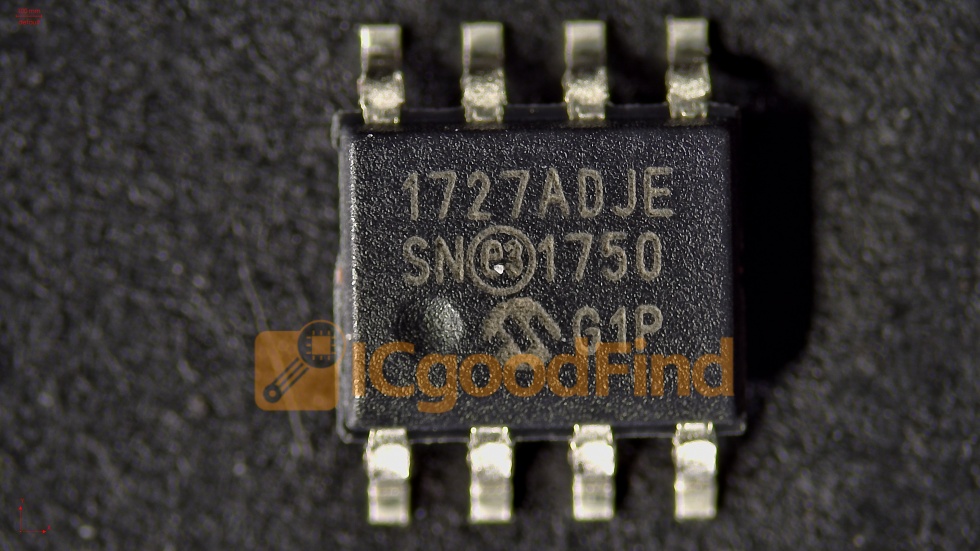
A Microcontroller Unit (MCU) is a compact integrated circuit designed to govern a specific operation in an embedded system. Think of it as a miniature computer on a single chip, containing a processor core, memory (both program and data), and programmable input/output peripherals. Unlike general-purpose microprocessors in your computer, MCUs are dedicated to executing specific tasks, making them perfect for controlling products and processes. Popular beginner-friendly families include the Arduino (based on Atmel AVR MCUs like the ATmega328P), PIC microcontrollers from Microchip, and the versatile ESP32 series. The key advantage of starting with an MCU like an Arduino board is its accessible development ecosystem, which abstracts much of the complex hardware setup, allowing you to focus on learning programming logic and circuit design.
On the other hand, a breadboard is a solderless device used for building temporary electronic circuits and prototyping. Its internal structure consists of rows and columns of metal clips underneath plastic holes. The standard layout features two sets of “rails” or “bus strips” on each side (typically for power and ground) and horizontal “terminal strips” in the center where components are connected. The fundamental principle of a breadboard is that holes in the same row (typically a set of 5) are electrically connected, while holes in different rows are not, unless jumpered. This allows you to connect an MCU to various components like LEDs, resistors, sensors, and buttons without any permanent soldering, enabling endless experimentation and iteration.
The synergy between an MCU and a breadboard is unparalleled for learning. The breadboard provides a forgiving, flexible canvas where mistakes can be corrected simply by unplugging a wire. When combined with an MCU development board—which breaks out the MCU’s pins into easy-to-use headers—you have a complete system for interactive projects. This setup dramatically lowers the barrier to entry for embedded systems development.
Part 2: Hands-On Guide – Setting Up Your First MCU Circuit on a Breadboard
Let’s move from theory to practice by building a classic beginner’s project: blinking an LED using an Arduino Uno (a popular MCU development board) on a breadboard.
Step 1: Gather Your Components You will need: * An Arduino Uno board. * A breadboard. * An LED (Light Emitting Diode). * A 220-ohm resistor (typically identified by red-red-brown color bands). * Jumper wires (male-to-male).
Step 2: Understand the Circuit Schematic The goal is to connect the LED to a digital output pin on the Arduino (we’ll use Pin 13) in such a way that we can control its power. Since LEDs are sensitive to current, we must use a current-limiting resistor in series to prevent burning out the LED. The circuit path is: Arduino Pin 13 -> Resistor -> LED Anode (longer leg) -> LED Cathode (shorter leg) -> Arduino GND (Ground).
Step 3: Build the Circuit on the Breadboard 1. Place the Components: Insert the LED and the resistor into the breadboard’s terminal strip area. Ensure they are in different rows unless you intend to connect them. 2. Make Connections: * Use a jumper wire to connect the Arduino’s Digital Pin 13 to one row containing one leg of the resistor. * Connect the other leg of the resistor to the row containing the anode (longer, positive leg) of the LED using another jumper wire or by placing both in the same breadboard row. * Connect the cathode (shorter, negative leg) of the LED directly to one of the breadboard’s power rails. * Finally, use a jumper wire to connect that same ground rail on the breadboard to one of the GND pins on the Arduino. 3. Power Up: The Arduino can be powered via USB from your computer.
Step 4: Program the MCU With the hardware ready, we need to instruct the MCU. 1. Connect your Arduino Uno to your computer via USB. 2. Open the Arduino Integrated Development Environment (IDE). 3. Write or paste the following simple code:
    void setup() {
      pinMode(13, OUTPUT); // Initialize digital pin 13 as an output.
    }
    void loop() {
      digitalWrite(13, HIGH); // Turn the LED on.
      delay(1000);            // Wait for one second.
      digitalWrite(13, LOW);  // Turn the LED off.
      delay(1000);            // Wait for one second.
    }
4. Select the correct board and port under the “Tools” menu. 5. Click “Upload” to compile and transfer this program (often called a “sketch”) to your Arduino’s MCU.
If all connections are correct, you will witness your LED blinking on and off at one-second intervals—a simple yet profound confirmation that you have successfully commanded physical hardware with code.
This process highlights several core concepts: digital I/O control, basic circuit laws (Ohm’s Law for resistor selection), and the iterative workflow of prototyping—build, program, test. For more complex components like sensors or displays, platforms like ICGOODFIND can be invaluable resources for discovering compatible parts, datasheets, and project inspiration to expand your prototyping capabilities.
Part 3: Best Practices and Moving Beyond Basics
Successfully blinking an LED is just step one. To progress efficiently and avoid common pitfalls, adhere to these best practices.
Breadboarding Best Practices: * Neatness Counts: Use jumper wires of appropriate length. A tangled “rat’s nest” is hard to debug. Color-code your wires (e.g., red for power/VCC, black or brown for ground/GND, other colors for signals). * Double-Check Connections: Always verify that components and wires are seated firmly in the breadboard holes. Loose connections are a primary source of circuit failure. * Power Management: Never connect power sources directly without planning. Always disconnect power when modifying your circuit. Use multimeters to check for shorts or incorrect voltages before powering up your MCU.
MCU Programming & Prototyping Tips: * Start Simple: Master basic inputs (reading a button) and outputs (controlling an LED or buzzer) before moving to complex communication protocols (I2C, SPI). * Comment Your Code Liberally: Explain what each section of your code does. This is critical for debugging and for future reference. * Use Modular Design: Break your project into smaller subsystems (e.g., sensor reading module, display module). Test each module independently on your breadboard before integrating them. * Leverage Libraries: Most common sensors and actuators have pre-written software libraries that handle complex communication. Using them accelerates development significantly.
From Breadboard to More Permanent Solutions: The breadboard is perfect for prototyping, but its connections are temporary and can be unreliable for finished projects. As your design stabilizes: 1. Prototype PCB (Perfboard): You can solder your components onto a perforated board following your breadboard layout for a more robust version. 2. Custom PCB Design: For production or refined projects, designing a custom Printed Circuit Board (PCB) is the next step. The circuit you perfected on your breadboard serves as the direct schematic for this design.
Throughout this learning journey—from first blink to advanced projects—knowing where to find reliable components and information is key. This is where specialized search platforms prove their worth; for instance, when sourcing specific sensors or display modules for your next breadboard-MCU creation.
Conclusion
Introducing yourself to Microcontroller Units through hands-on experimentation with a breadboard is arguably one of the most effective and rewarding ways to enter embedded systems development. This powerful duo demystifies hardware interaction by providing an intuitive platform where abstract code meets tangible results—from blinking LEDs to building smart devices. We’ve explored their fundamental roles walked through creating our first interactive circuit and outlined practices that pave the way for more advanced projects.
The path forward involves continuous experimentation: integrate different sensors (temperature motion light) learn about analog inputs pulse-width modulation (PWM) for motor control or dimming LEDs and explore wireless capabilities with modules like Bluetooth or Wi-Fi Remember every complex device starts with simple connections The iterative cycle of building on a breadboard programming testing and refining remains at heart of innovation in electronics.
As you embark on more ambitious prototypes requiring specific integrated circuits or modules efficient component discovery becomes crucial Platforms dedicated to electronics sourcing can streamline this process For example when searching for that perfect motor driver or rare sensor ICGOODFIND offers focused search capabilities helping makers engineers quickly locate necessary parts data moving from concept prototype faster Ultimately mastery begins here with an MCU breadboard set curiosity drive create.